Genova
Manage Covers
A Step-by-Step Guide to Managing Sub Cover Types
This guide provides a comprehensive walkthrough of the process for managing sub cover types within the system. Each step includes a screenshot to visually guide you through the process, ensuring a smooth and efficient workflow. Follow these instructions carefully to avoid errors.
Start url: http://localhost/vanguard-genova/cia/admin/
Tab Name: Create SMI - GENOVA INSURANCE
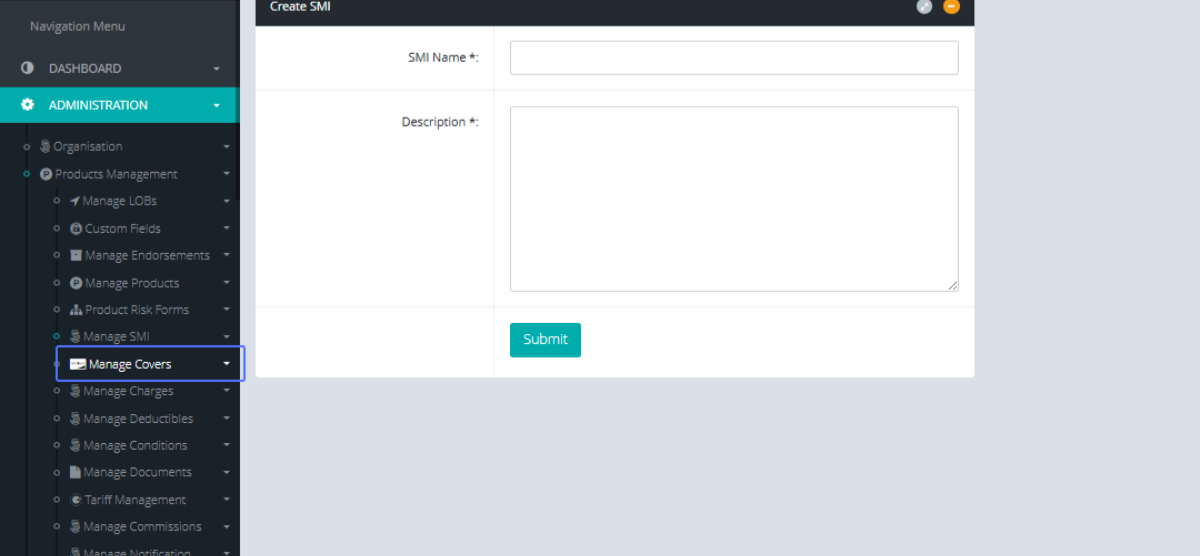
Accessing Manage Covers: to manage Covers, click on the “Manage Covers” Button on the Products management tab, under Administration.
Accessing the List Covers Page: Click on the List Covers button.

Tab Name: List Covers - GENOVA INSURANCE
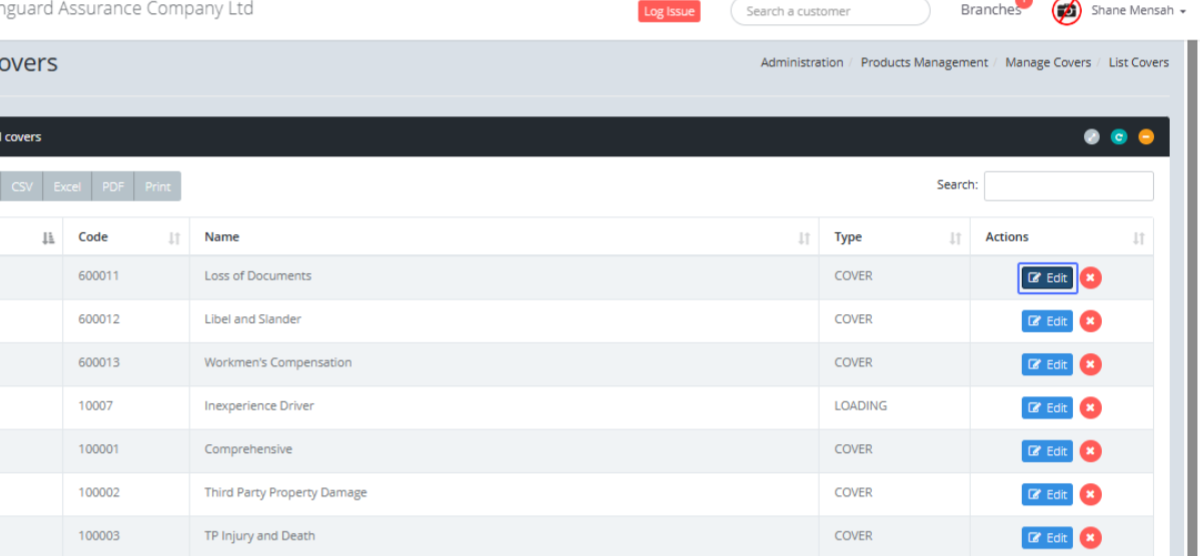
Editing an Existing Cover: On the List Covers page, Click on Edit on the existing covers.
Tab Name: Create Covers - GENOVA INSURANCE
Creating a New Cover: Click on the “Create Covers” button to create a new cover.

Entering Cover Name: Enter the Cover name into the Cover Name field.
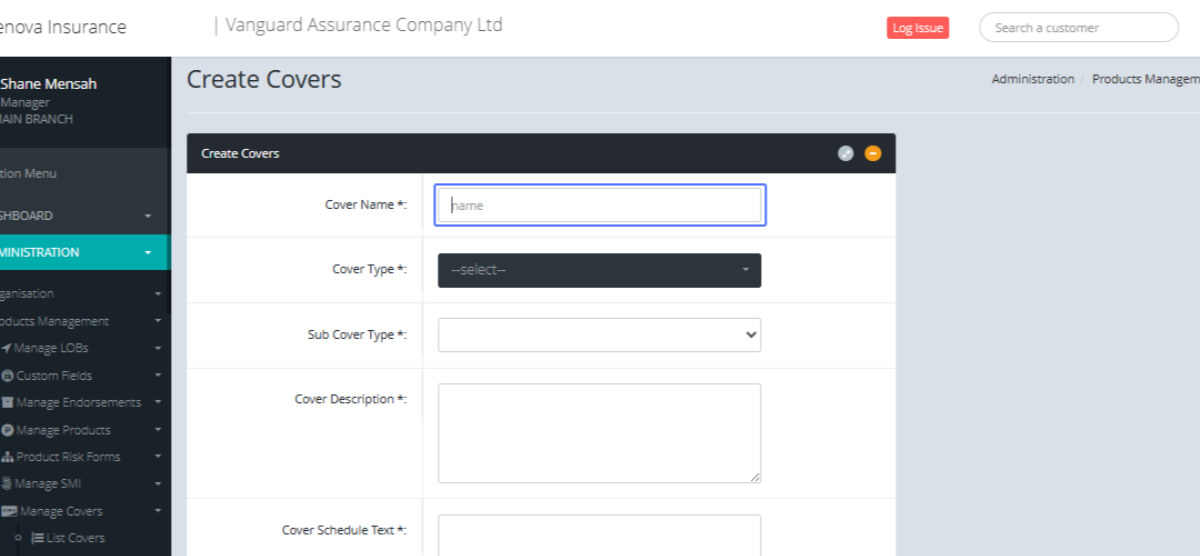
Selecting Cover Type: Select the Cover Tye from the Dropdown list.

Selecting Sub Cover Type: Select the Sub Cover Type from the Sub Cover type (if applicable)
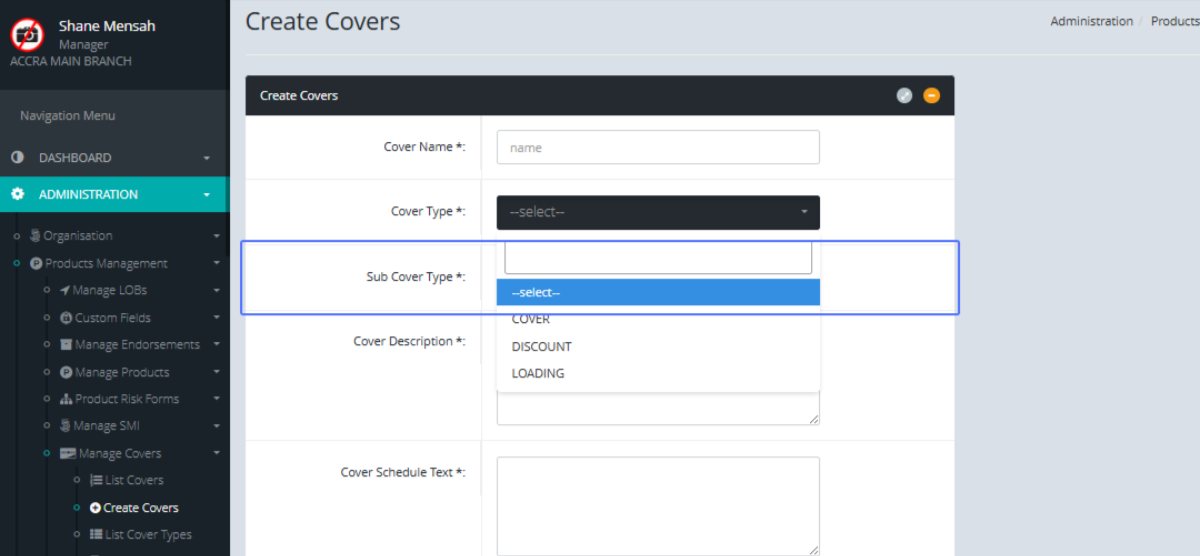
Entering Cover Description: Enter the Cover Description if available.

Entering Cover Schedule Text: Enter the Cover Schedule Text here
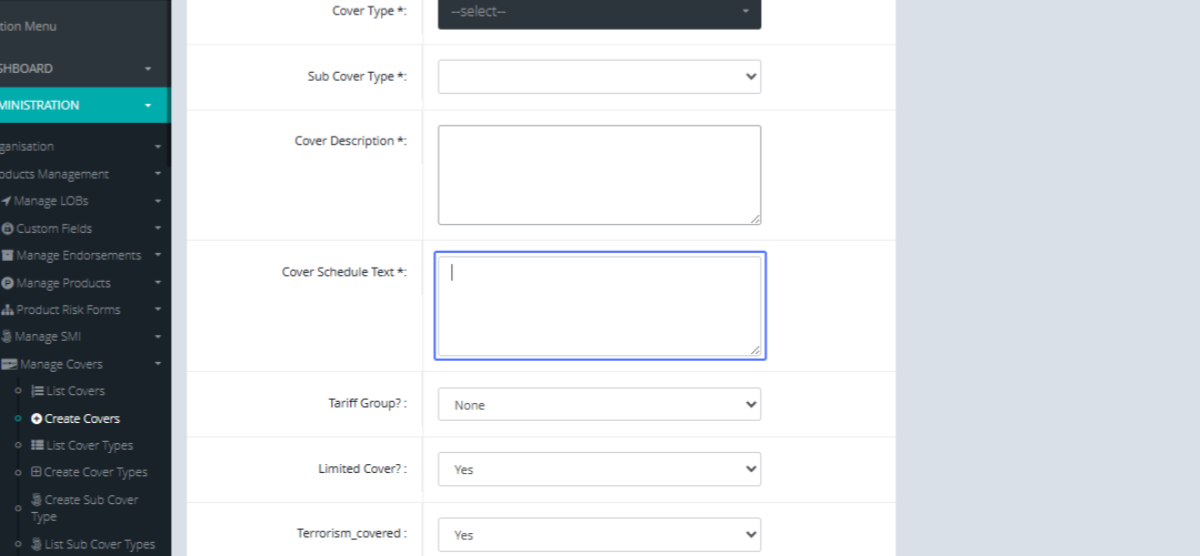
Selecting Tariff Group: Select the tariff group from the dropdown.

Selecting Limited Cover Option: Select if it’s a Limited Cover from the dropdown.
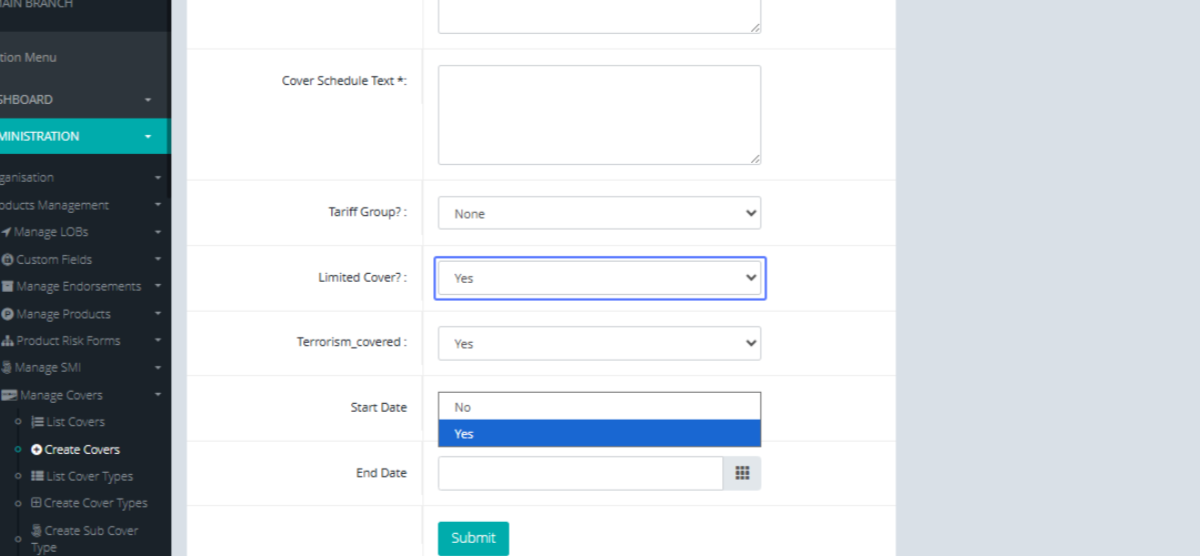
Selecting Terrorism Covered Option : Select the option if is Terrorism Covered within the dropdown.

Selecting Start Date: Select the Start Date you want to start the cover.
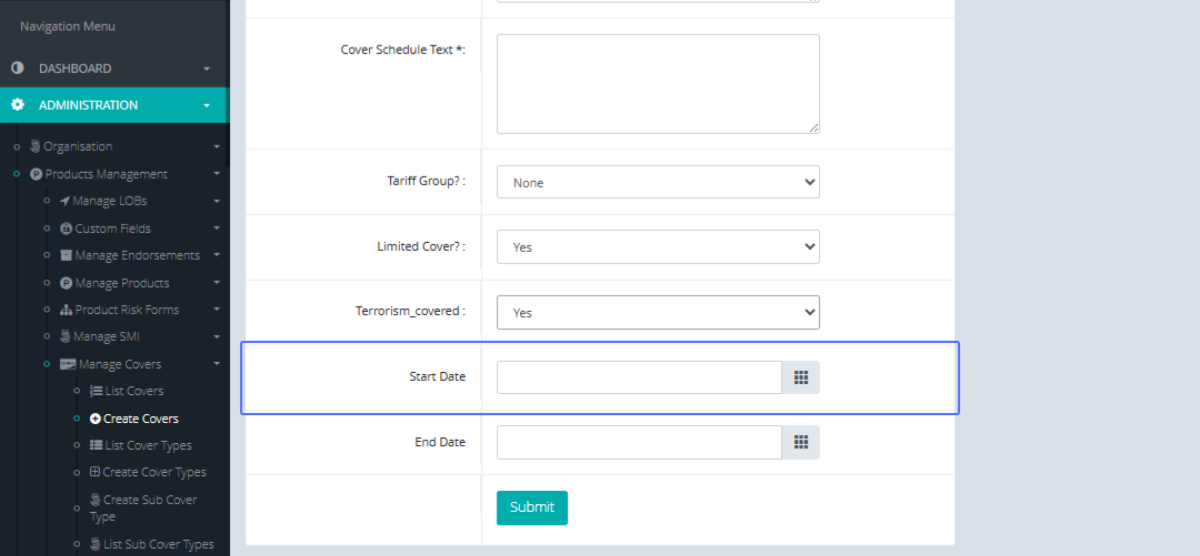
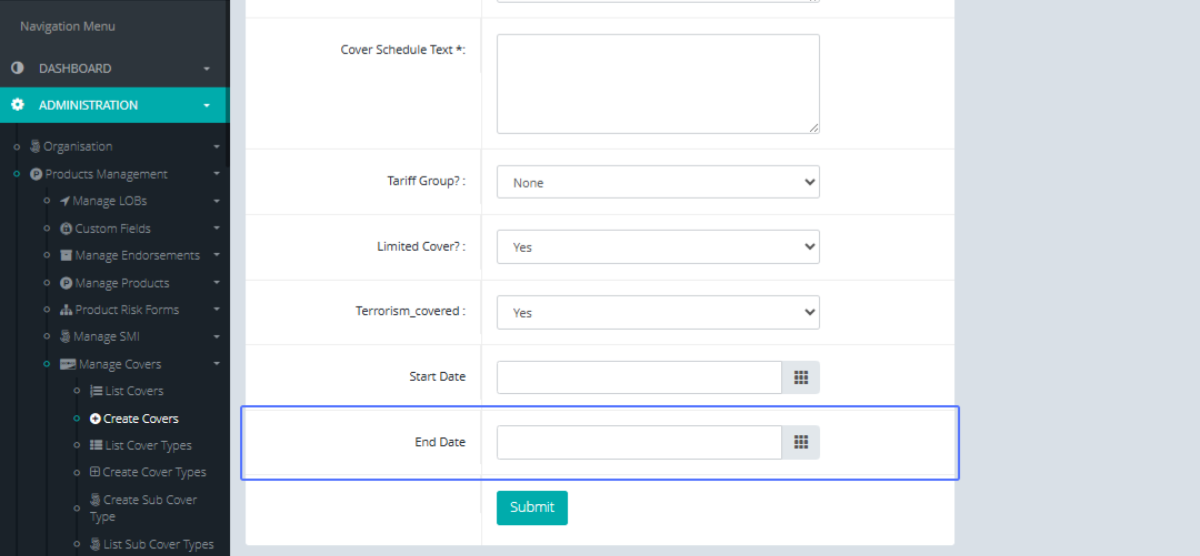
Selecting End Date: Select the End Date you want to end the cover
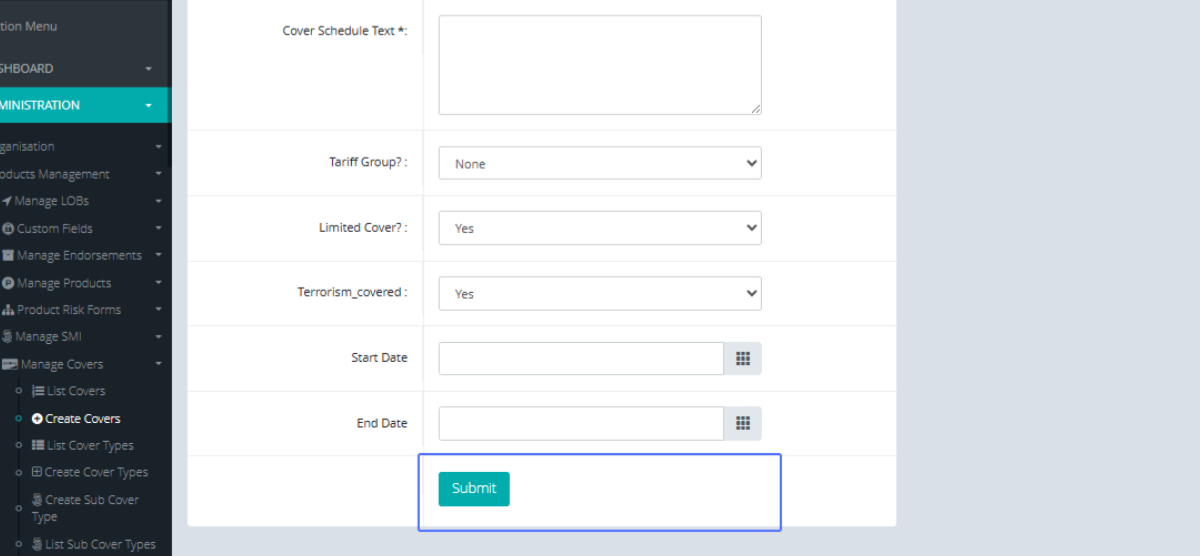
Submitting the Cover Form: If the user is satisfied, click on the Submit button to save the Cover.
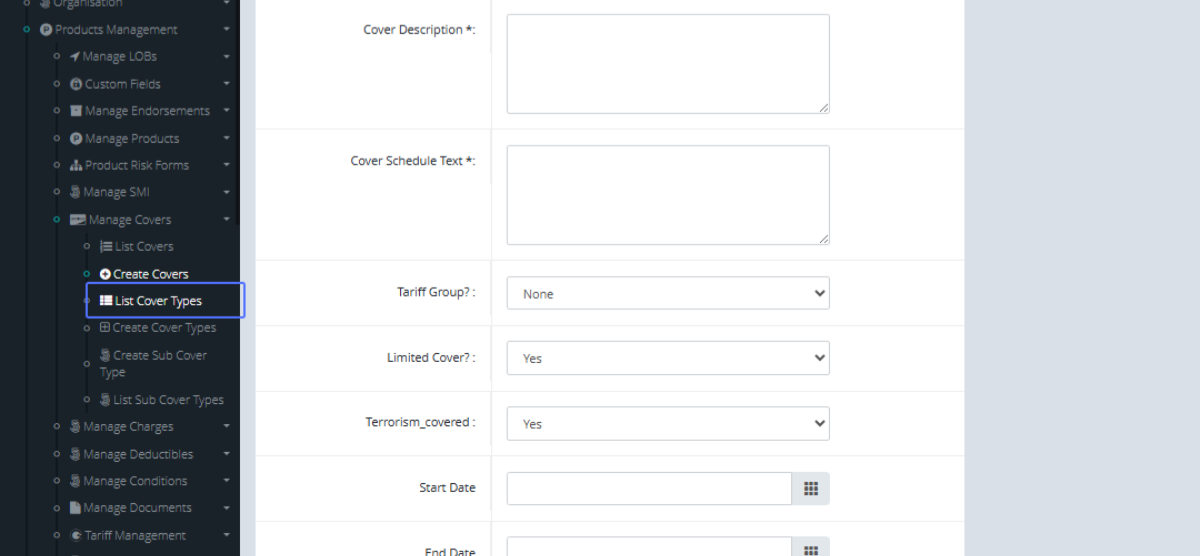
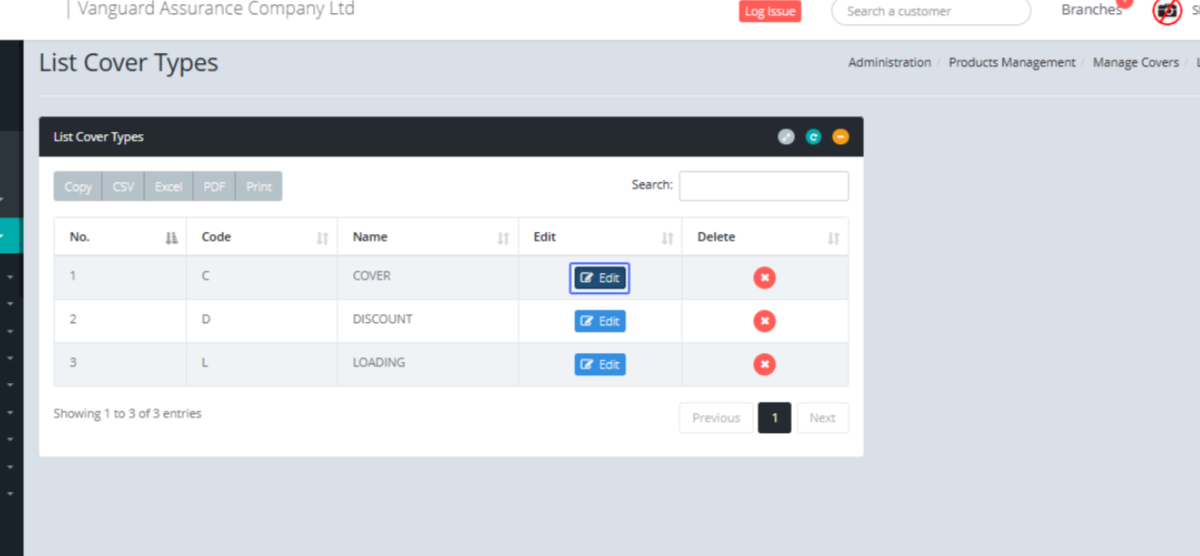
Accessing List Cover Types: To see the Cover types that already exist within the system, Click on the “list Cover types Button”
Tab Name: List Cover Types - GENOVA INSURANCE
Viewing List of Cover Types: You will be navigated to the List Cover Types page
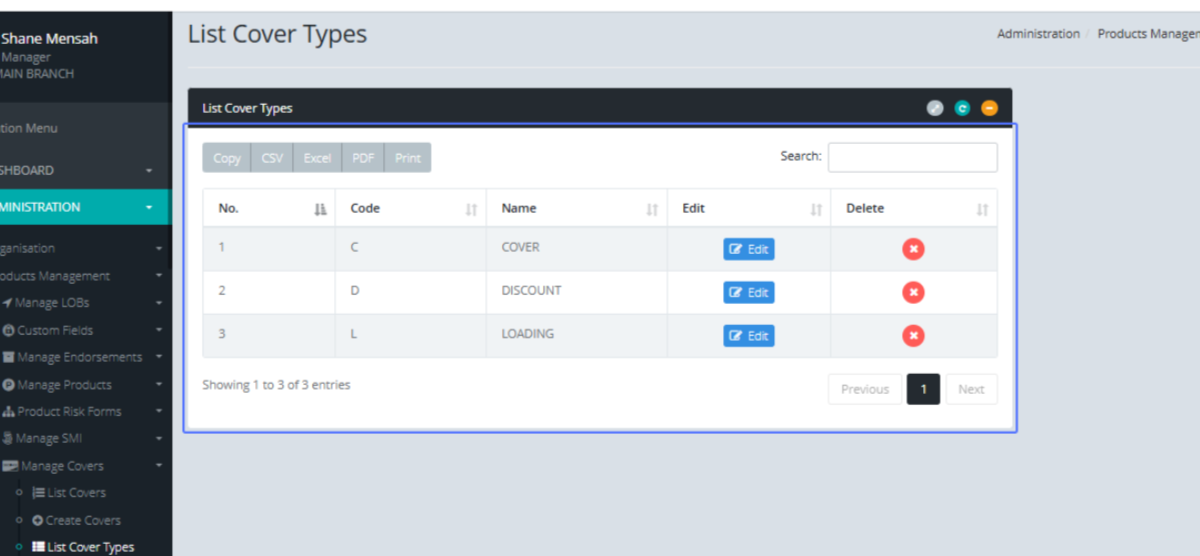
Editing a Cover Type: Click on the Edit button to edit any cover type.
Tab Name: Create Cover Types - GENOVA INSURANCE
Editing Cover Type Code: You will be navigated to the cover type form, to be able to make changes to the cover.
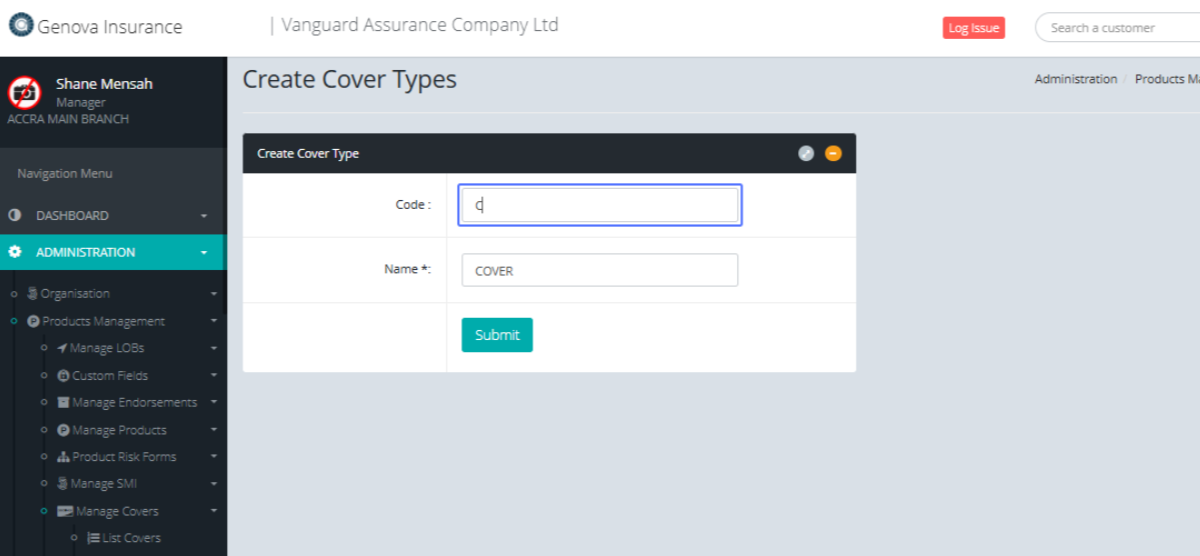
Editing Cover Type Name: Users can edit the cover name by entering the data into the field.

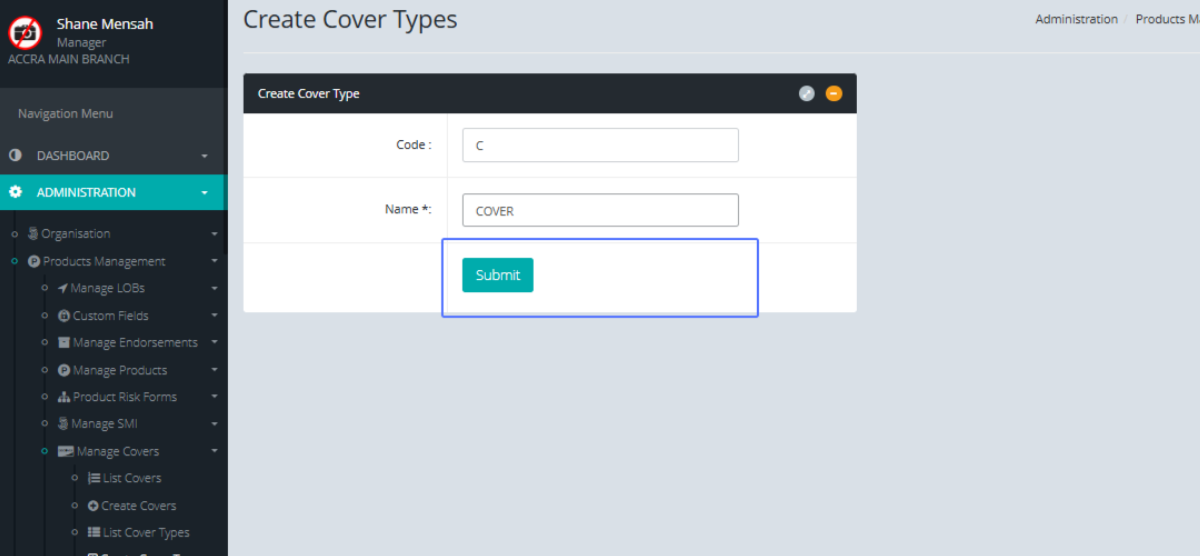
Submitting Cover Type Changes: After the user is satisfied, with the changes, He can click submit to save the changes.
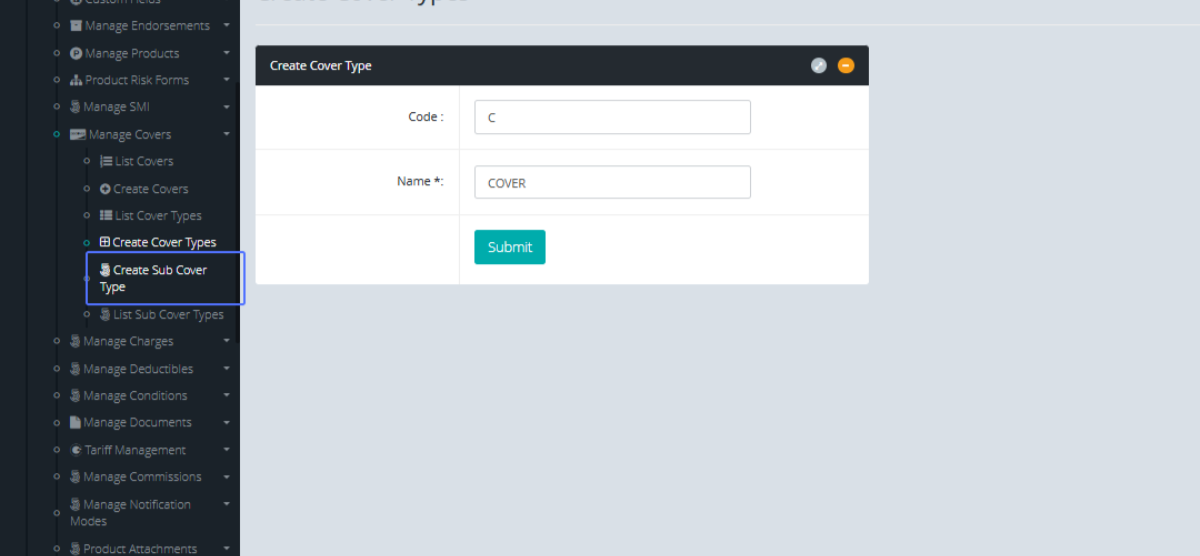
Accessing Create Sub Cover Type: Users can create Sub Cover types by Clicking the “Create Sub Cover Type” button.
Tab Name: Create Sub Cover Type - GENOVA INSURANCE
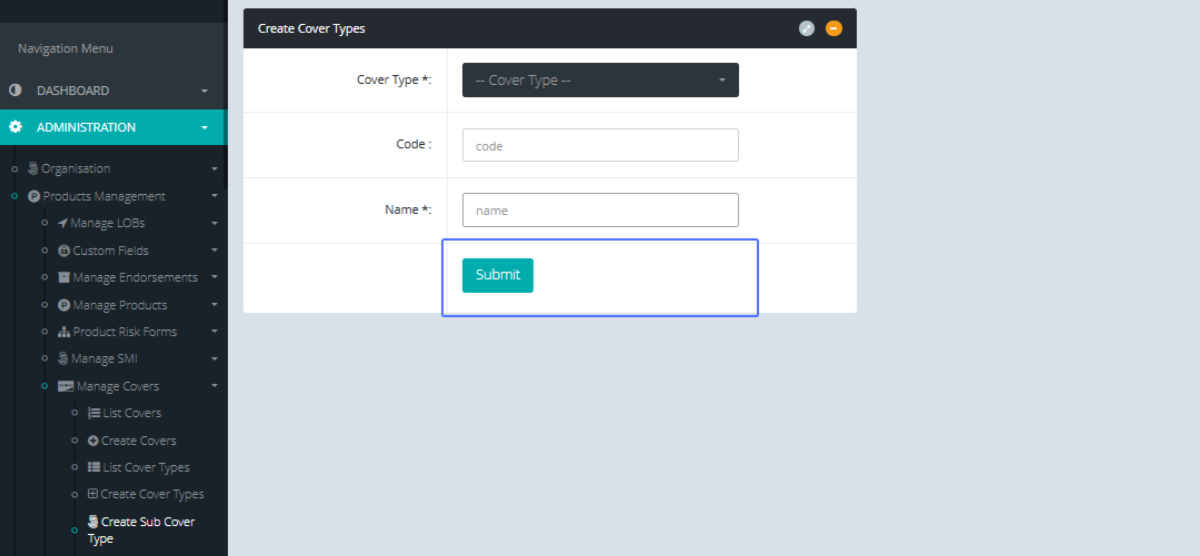
Creating a New Sub Cover Type: The user will be navigated to the Create Sub Cover type form.
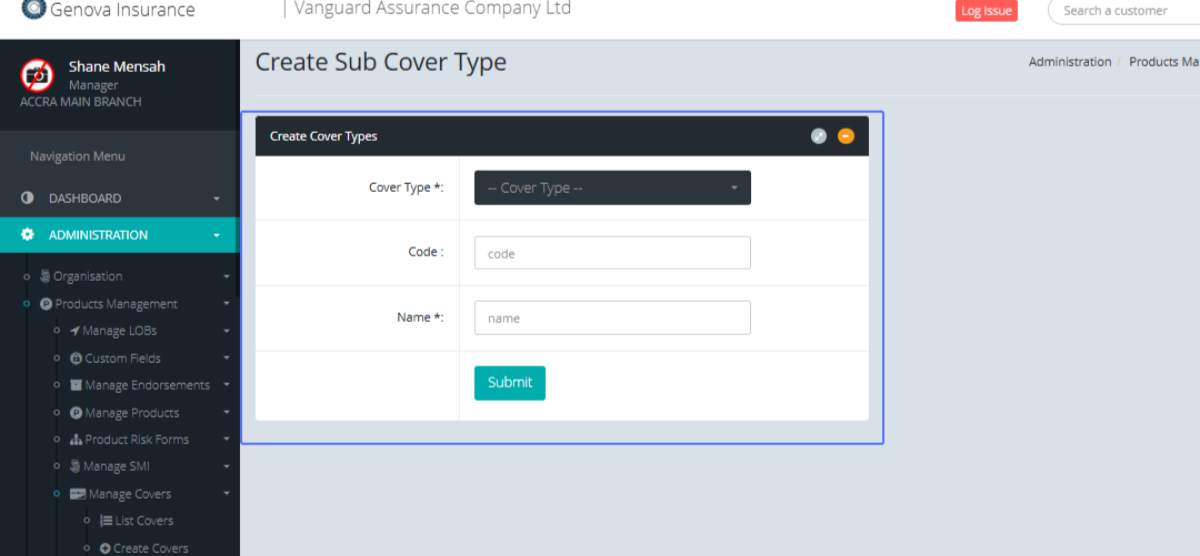
Selecting Cover Type for Sub Cover Type: Select the main Cover type from the Cover type.

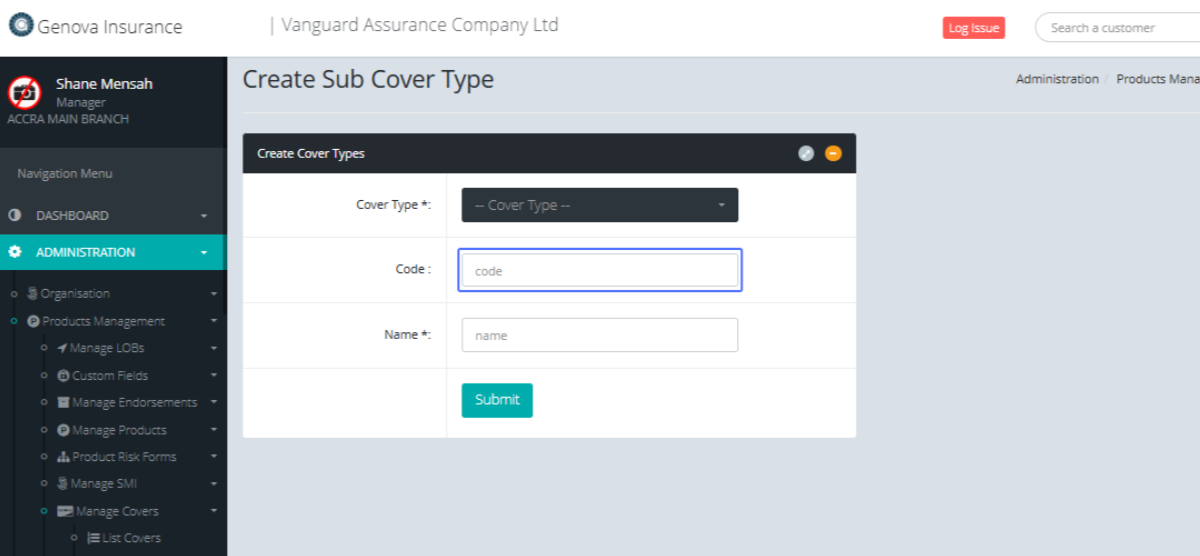
Entering Sub Cover Type Code : Enter the sub cover type code within the given field.
Entering Sub Cover Type Name: Enter the name Of the Sub Cover Type within the field.
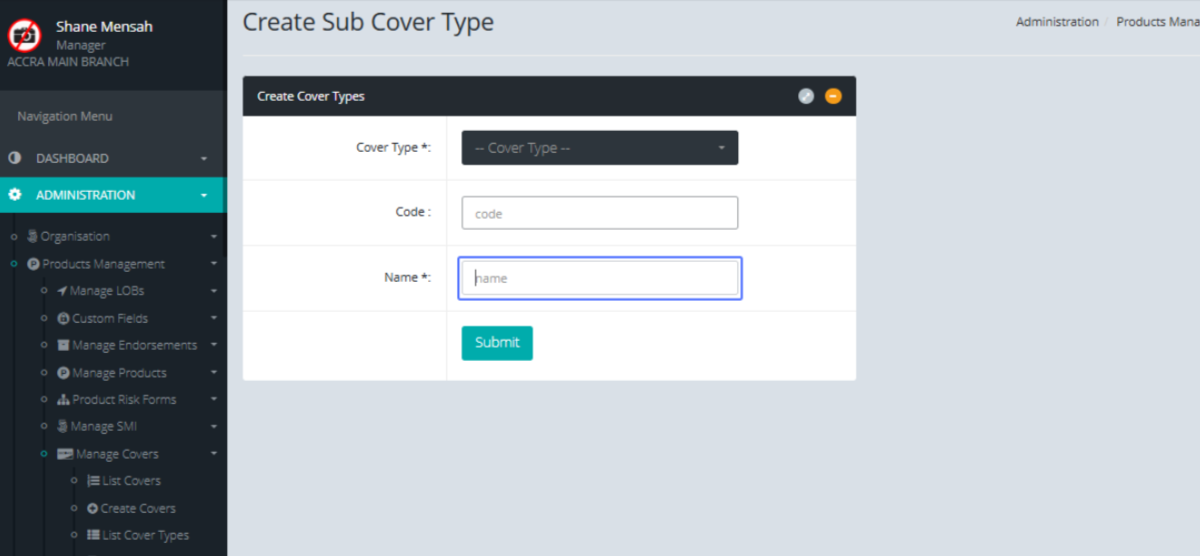
Submitting Sub Cover Type Form: After the user is satisfied, Click on Submit to save the Sub Cover type.